

Recharge easily with instant online coloring

There were already so many traditional mediums, and then the digital era arrived.
SVG coloring works incredibly well to stay inside the lines, resulting in a smooth and satisfying finished piece. By selecting each area of the artwork, you can certainly spend a long time creating the perfect design.
There's a new method of online coloring that focuses on the general position of Red, Green, and Blue, instead of manually applying colors. This quick and easy digital tool allows you to adjust spread and bias across regions of the artwork; it's an experimental and fun activity overall.
This is how you'll enter a creative flow state and enjoy digital art like never before:
The ease of using sliders in online coloring
Traditional abstract art relies on brush strokes, textures, and color blending.
Now, you essentially have three color groups to refine with several sliders.
This approach offers several benefits:
Dynamic color control: Using Red, Green, and Blue sliders or inputs, you adjust how much color is present or how far it is spread across different regions of the artwork.
Precision with flexibility: You can control shapes and their arrangement precisely. Select X, Y, or Sequence to control the direction of each group.
Instant feedback: Changes update in real time, making changes fun and entertaining
Flow state: The combination of geometry and color manipulation helps focus your mind and reduce stress.
Explore coloring in a new way.
The basics of instant color controls
The core of this interactive tool lies in how it uses the RGB color model to influence the artwork’s appearance. Here’s what each component does:
Red (R): Controls the intensity and spread of red hues across the shapes. Increasing red can warm up the image or highlight specific regions.
Green (G): Adjusts green tones, often adding balance or natural vibrancy.
Blue (B): Influences blue shades, which can cool the image or create depth.
By tweaking these values, you change how colors blend and where they concentrate. The tool often allows you to set bias, meaning you can push colors toward certain shapes or areas. For example, you might bias red toward the center to create a glowing effect or spread blue evenly for a calming background.
This control over color distribution makes the artwork feel alive and responsive to your input.
Core coloring functions for quick experimentation
How "Bias" and "Spread" work together
Think of Bias as the "location" of a color and Spread as its "reach"
Bias: Moves the peak of that specific color channel across your mapping axis.
If Red Bias is set to -100 on the X-axis, the red will be concentrated on the far left.
Spread: Determines how far that color "bleeds" into the rest of the image. A low spread creates a tight band of color that looks line a line. A high spread will take over the entire composition.
The "Set Anchor" function
When you click to Set Anchor, you can make a specific element the "center" of the universe. All color functions then radiate outward from that point in a circle. You can use it to reach a specific area with more ease.
The "Re-Seed" button
The seed is a random number that starts the mathematical "noise" function. Every seed produces a unique "terrain" of values. If you like your current settings (Scale, Bias, Spread) but don't like the specific pattern, Shuffling the Seed keeps your "style" but generates a completely new version of it.
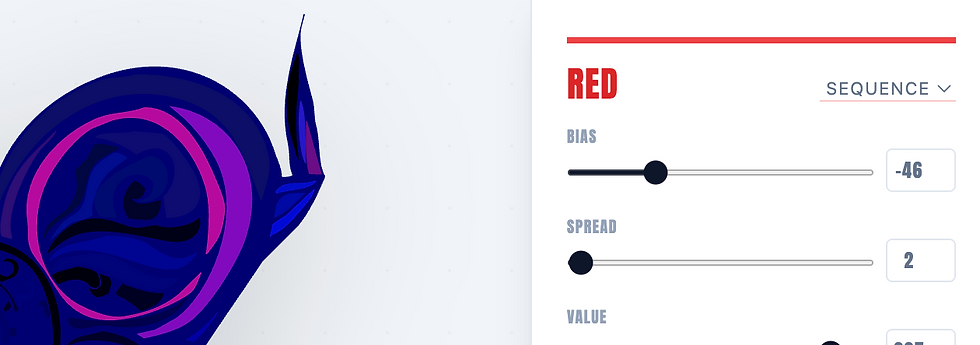
"Axis X/Y" and "Sequence"
They determine the direction of the color group.
Axis X/Y: Colors are assigned based on the element's physical location on the screen. Change colors on the Y axis to make the bias and spread to adjust up or down. Change on X to go left and right.
Sequence: Colors are assigned based on the element's "rank" in the SVG code, changing in more of a circular direction.
"Noise Scale" slider
The Noise Scale acts as the "magnifying glass" for your color pattern.
Low Scale (1-30): Creates broad, sweeping washes of color. It treats the entire SVG as a single landscape.
High Scale (100+): Increases the "frequency" of the noise, creating granular, high-detail textures where neighboring elements are likely to have vastly different colors.
Octaves
Octaves control the "layers" of the fractal
1 Octave: Results in a smooth, simple gradient (blobs).
6 Octaves: Stacks multiple layers of noise at different sizes.
Load Vector
Paste a custom SVG code to color any existing design with the sliders.

Try the new approach to coloring instantly
While it is experimental, instant coloring could be your next way to recharge. Try it now at:

Comments